


When you use a hardware wallet, your private keys never touch the internet. Combine that with Solana’s native staking, and you can earn rewards by delegating while keeping keys offline. This guide pairs signing devices like Ledger and Keystone with interfaces such as Solflare, Phantom, and Ledger Live so you can complete cold delegation end to end. We cover the first connection, authority model, validator selection and diversification, unstaking and reward checks, plus security habits to address recent incidents—all in one coherent flow.
Everything here is practical. We walk through how a stake account is created and which authorities it carries, how to read epoch-based activation and deactivation timing, when to turn blind signing on and off, and the interface-specific nuances and error handling. By the end, you’ll be confident staking and managing SOL safely without breaking the principle of offline key storage.
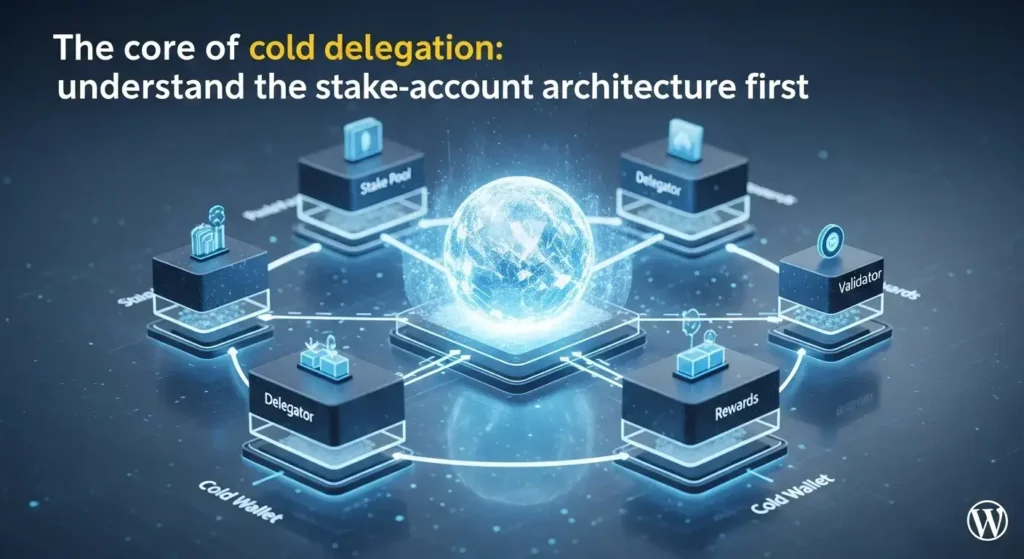
The core of cold delegation: understand the stake-account architecture first
Staking on Solana doesn’t lock your wallet balance directly. First you create a stake account separate from your wallet address and delegate that account to a validator. Each stake account can be delegated to exactly one validator. If you want diversification, you split the account into multiple ones and assign them to different validators; when conditions allow, you can merge compatible accounts to reduce management overhead.
There are two distinct authorities on a stake account: the stake authority, which controls delegating, splitting, merging, and deactivating; and the withdraw authority, which can withdraw fully deactivated funds or change authorities. If security is the top priority, at minimum keep the withdraw authority on a hardware wallet and offline. Cold delegation is about leaving authorities offline while managing delegation on-chain.
Separating stake and withdraw authorities, and custody principles
The stake authority approves operational actions such as activation, deactivation, splitting, and merging. The withdraw authority, by contrast, enables moving fully unstaked funds back to your wallet or changing authorities. Using the same key for both is convenient but weakens your security layers. Because compromise of the withdraw authority directly risks your funds, it should live on a hardware wallet—full stop.
In practice, fix your hardware wallet as the authority signer, and let interfaces like Solflare or Phantom only compose and relay transactions. This way the private key exists solely on the device; the browser extension or desktop app merely provides the screen and networking, and approvals always happen physically on the device display.
Epoch-based activation and deactivation timing explained
Delegation and unstaking on Solana don’t finalize instantly. The network applies stake changes gradually on an epoch basis. After you delegate, the stake warms up and becomes active across the next epoch; deactivation (unstaking) also unwinds gradually over subsequent epochs. Exact timing is elastic depending on network conditions and global limits.
Rewards follow the same cadence. They accrue and settle per epoch, are reduced by the validator’s commission, and auto-compound into the stake account balance. Don’t look for a separate claim step; just check that balances tick up at epoch boundaries. Once you start unstaking, active stake shrinks and rewards stop accruing on the deactivating portion, so plan timelines and liquidity ahead of time.
Preparation checklist and security fundamentals
Cold delegation starts with an up-to-date device and a trustworthy interface. Update Ledger or Keystone firmware and the Solana app, and make sure your browser wallet (Phantom or Solflare) is current. Open the Solana app directly on the device, then import the hardware account through the browser wallet’s connect-hardware flow.
For DApp interactions, you often need to enable Blind signing in Ledger’s Solana app settings. Because this allows signing payloads that aren’t fully parsed on-screen, turn it on only when required and turn it off right after. Creating a stake account requires a rent-exempt reserve, and you should keep some SOL in the wallet for future delegation, splits, and fees.
When to turn Blind signing on and off
When interacting with Solana DApps or signing composite transactions generated by extensions, not every field may be fully parsed on the Ledger screen. If Blind signing is disabled, the device will refuse such signatures, so temporarily enable it for multi-instruction tasks such as creating a stake account, delegating, or splitting.
Once the task is done, disable the option. Even with Blind signing on, cross-check whatever the device still shows—recipient, amounts, and instruction types. If the DApp or domain feels unfamiliar, cancel boldly and re-verify that you’re on an official path.
Fees and rent-exempt reserve: how much balance to leave
Creating a stake account requires a rent-exempt reserve whose amount can change with network parameters; it remains locked while the account exists. On top of that, you’ll pay transaction fees. Don’t stake 100% of your funds—leave a buffer of SOL for future splits, merges, and unstake transactions.
Balance management is simple. Don’t tie up an oversized sum in a single account on day one. Size your buffer to your validator diversification plan and maintenance cadence. Because splits and merges also incur fees, keeping roughly two to three maintenance cycles’ worth of fees plus the rent-exempt reserve as a safety margin works well.
Native staking with Ledger + Solflare/Phantom, step by step
When you connect a Ledger account to a browser wallet (Solflare or Phantom), transactions are composed in the web UI and approved physically on the Ledger device. This pairing is ideal for performing native delegation while keeping keys offline, and lets you choose validators, split stake, and unstake from one screen.
Do three preflight checks: confirm your Ledger firmware and Solana app are current; ensure the Solana app is open on the device; and know where the Blind signing toggle lives for tasks that require it. With Phantom in particular, close the Ledger desktop app to avoid USB conflicts.
Delegating after connecting Ledger with Solflare
In Solflare’s extension or web app, choose “Continue with Ledger,” open the Solana app on the device, and pick your derivation path. Once the account loads, enter the “Stake” or “Earn” flow from the portfolio view to create a stake account. The app will propose a creation transaction that includes the rent-exempt reserve—review details on the Ledger screen and approve.
With the stake account ready, pick a validator and enter the amount to delegate. Approve the delegation transaction on the Ledger. You can track activation progress and epoch rollover in Solflare’s staking tab. If you want diversification, run “Split” on that stake account to create a new one, then delegate the new account to a different validator.
Phantom with Ledger: connection tips and troubleshooting
In Phantom, open Settings and select “Connect Hardware Wallet,” choose Solana as the network, then attach your Ledger via USB. With the Solana app open on the device, import the account and it will appear in your portfolio. From the staking tab, choose a validator and amount; the app creates a delegation transaction you’ll approve on the device.
If a transaction fails, first check for Ledger firmware and Solana app updates, Blind signing status, cable or USB-port issues, and try restarting the browser. Close Ledger Live if it’s running and retry. If Phantom sent a signing request but nothing appears on the device, confirm the Solana app is actually open and that the browser has USB permissions—those two fix most cases.
Delegating to Ledger Live partner validators: what’s different?
Ledger Live (Ledger Wallet app) also supports SOL staking via partner validators (e.g., Figment). Your private keys still remain on the device and approvals happen on-screen. The difference is a simplified interface with a partner validator flow presented as the default path.
APY varies with network conditions and validator performance, net of validator commission. Because relying on a single partner can limit diversification, consider splitting stake in Solflare or Phantom and delegating portions to additional validators.
Delegation workflow in Ledger Live, at a glance
Update Ledger Live, open the Solana app on your device, add your SOL account in the Accounts tab, then open the Stake menu. Select a partner validator, enter the delegation amount, and review recipient and actions on the Ledger screen before approving.
Activation then progresses over epochs and rewards compound automatically into the stake account. Use Ledger Live’s delegation and reward views for tracking, but for finer-grained splits, merges, or validator changes, pair it with Solflare or Phantom to gain flexibility.
Partner delegation vs native delegation: comparison points
Partner delegation is easy to start and has a clean UI, but the validator menu can be narrower and advanced management (split, merge, conditional switching) may be less exposed. Native delegation through Solflare or Phantom lets you compare many validators and perform account-level operations on the spot.
Both approaches keep keys solely on the hardware device. Choose the interface that fits your goal—fast start or fine-grained diversification—and feel free to combine them to get the best of both.
Keystone QR cold signing: operate as watch-only in Solflare
If you want an even stricter air gap, a QR-based hardware wallet like Keystone is a strong option. In this model you import a watch-only address into Solflare, compose transactions there, sign them on Keystone via QR, and let Solflare broadcast to the network—achieving cold delegation without a wired connection.
The key is that your account keys never leave the offline device. QR codes merely ferry signing requests and results; the browser displays transaction details and relays to the network. This setup sidesteps cable and driver headaches and makes it easy to visually scrutinize every approval step.
Importing Keystone into Solflare as watch-only
First, update Keystone firmware. Display the Solana account QR on Keystone, then in Solflare’s add-account flow choose Keystone and scan the QR to create a watch-only account. This account can show balances, history, and stake status, but it has no signing authority.
From here, you’ll compose staking transactions in Solflare, then, at the signing step, present the request QR to Keystone to produce an offline signature. Scan Keystone’s signature QR back into Solflare to broadcast and complete the delegation.
Handling delegation and unstaking with QR signing
The delegation flow mirrors the Ledger setup. After creating a stake account, choose a validator and amount; Solflare will present a signing-request QR. Keystone scans it, generates an offline signature, and shows a return QR; Solflare reads it and submits the transaction.
Unstaking, splitting, and merging work the same way. Because every approval occurs on Keystone’s screen, you substantially reduce exposure to spoofed domains or malicious extensions. The trade-off is one extra QR-scan step, so expect slightly longer task times.

Validator selection and diversification: structural resilience over raw yield
Staking rewards you for helping secure the network. Prioritize validator selection for steady operations, sensible commission, and reduced stake concentration over chasing headline APY. Use Solana explorers and wallet validator lists to review uptime, recent slashing history, and commission trends in tandem.
Because one stake account maps to one validator, practical diversification comes from splitting stake accounts. Start with a handful of accounts and delegate across them; if a validator underperforms, deactivate and switch in the next epoch. When conditions align, merge tiny accounts to cut fees and simplify management.
Uptime, commission, and stake concentration checklist
Uptime shows whether a validator has been producing blocks and voting reliably. Operators with long, steady uptime tend to deliver more consistent rewards. Commission is the validator’s cut from rewards; if it’s too low, sustainability is questionable, and if it’s too high, your long-term yield suffers. Aim for a reasonable commission plus consistent uptime.
Stake concentration directly impacts decentralization. Funneling delegation only to top-heavy validators increases systemic risk. Spread across a few in the top tier and some in the upper-mid tier. Pay attention to community reputation and whether operators publish transparent reports.
Use stake split/merge to stay flexible
Split takes an amount from an existing stake account to create a new one, which you can delegate independently. Remember that splits incur fees and each new account needs its own rent-exempt reserve.
Merge combines compatible stake accounts (e.g., delegated to the same validator and in compatible activation states). Use it to reduce fragmentation and fees when you’ve ended up with many small accounts. Both operations require on-device approval, which helps prevent accidental changes to the wrong account.
Unstaking, reward tracking, and maintenance routines
When you start deactivation (unstake), active stake unwinds over subsequent epochs. During this period, that stake stops earning rewards as it deactivates. Once fully deactivated, you can withdraw to your wallet balance using the withdraw authority. To keep cold-storage discipline, approve that withdrawal on the hardware device only.
Rewards are auto-added to stake accounts every epoch. You can verify them in Solflare, Phantom, or Ledger Live by watching balance changes—no claim transaction needed. Build a cadence to review validator performance, and if rewards fall short of expectations, prepare splits or switches timed to the next epoch.
From unstake request to withdrawal
First, request deactivation. Compose the transaction and approve it on your hardware device; the stake will start deactivating from the next epoch onward. You can’t re-delegate the same amount simultaneously, and the deactivating portion no longer accrues rewards.
After deactivation completes, withdraw the inactive balance from the stake account back to your wallet address (system account). This action must be signed with the withdraw authority and, per cold-storage best practice, approved only on your hardware device. You can then redistribute remaining stake across other validators to optimize.
Tracking compounding rewards and a re-delegation routine
Because rewards auto-compound into stake balances, the difference grows meaningful over time. Set a regular check-in to review activation, epoch rewards, and any commission changes. If needed, split off a small slice to trial a new validator and keep refining your allocation.
Your routine shines when market or fee conditions shift. Managing just before or after epoch rollover can minimize wait times, and batching maintenance—merges and splits—when fees are low helps reduce costs.
Common pitfalls and safe operating habits
As with supply-chain attacks on DApp connect libraries, vulnerabilities you didn’t cause can still reach your signing screen. In the Ledger Connect Kit incident, malicious code was distributed and some users signed unintended transactions. While patches landed, similar risks can recur via other third parties.
Ultimately, treat the device screen as your source of truth. Confirm you’re on official domains, ensure the transaction matches your intent, and verify recipient, amounts, and instruction types on the device before approving. If anything feels off, stop immediately. Use Blind signing sparingly—enable only when needed and disable right after.
Lessons from supply-chain attack incidents
First, trust only official domains and verified distribution channels. Use bookmarks and avoid accessing through search ads. Second, make it a habit to check recipient, instruction, and amount on the device screen—whatever the browser shows, the device has the final say. Third, decline transactions that bundle unfamiliar permissions or an unusually large number of instructions, and re-verify.
Fourth, use Blind signing only when strictly necessary. Fifth, keep devices, apps, and extensions up to date, and when something suspicious happens, read recent release notes and advisories first. Lastly, run a small test transaction to validate the workflow before moving the principal—this cuts the risk of unexpected loss dramatically.
Quick triage for connection and signing errors
If Ledger won’t connect, switch USB ports, try a different cable, confirm the Solana app is open on the device, and fully close Ledger Live to avoid conflicts. Enable Blind signing if the task requires it.
If Phantom or Solflare sent a signing request but the device stays quiet, check browser permissions (USB or U2F) and extension updates. For Keystone, ensure the QR is crisp and lighting is adequate. If issues persist, reboot the device and browser, then run a small test transaction to confirm things are back to normal before proceeding.
